Usage
Authentication
Similar to the Authentication on the frontend application, users can login or register upon launching the application. Accounts are shared for the entire platform and users who has an existing account with the frontend application does not need to register for the mobile application.
Viewing projects
Upon successful authentication, users will be redirected to the home page with a list of existing projects on the platform that are currently recruiting.
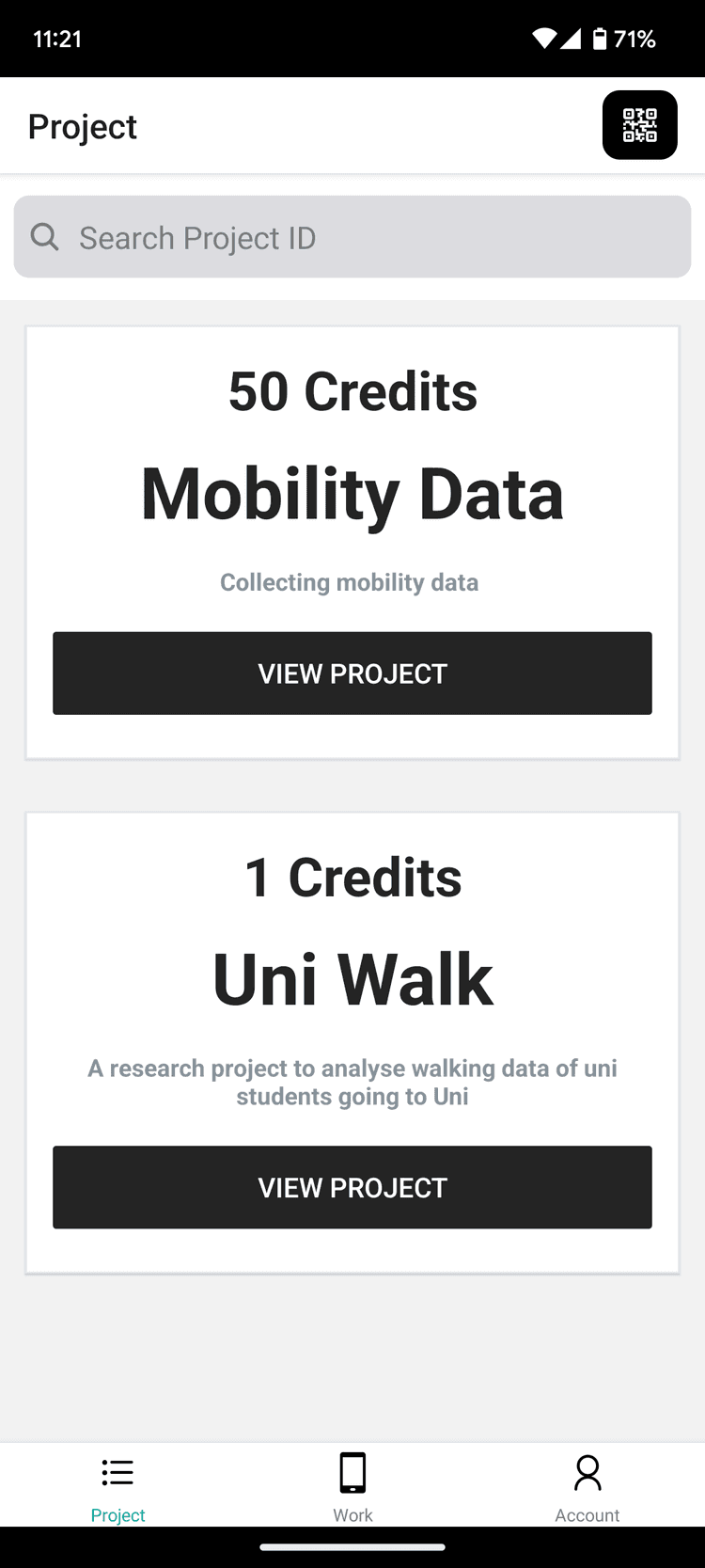
The list of projects are displayed in cards with 'at-a-glance' information available such as participation rewards, project title and a short description.
Searching projects
Private projects will not be listed and must be joined via the project ID or by scanning the project QR code using the scanner accessible on the top right.
Joining projects
When users clicks on View Project from the project cards on the home page or after scanning a project QR, they will be redirected to the project details page where the full details of the project can be found.
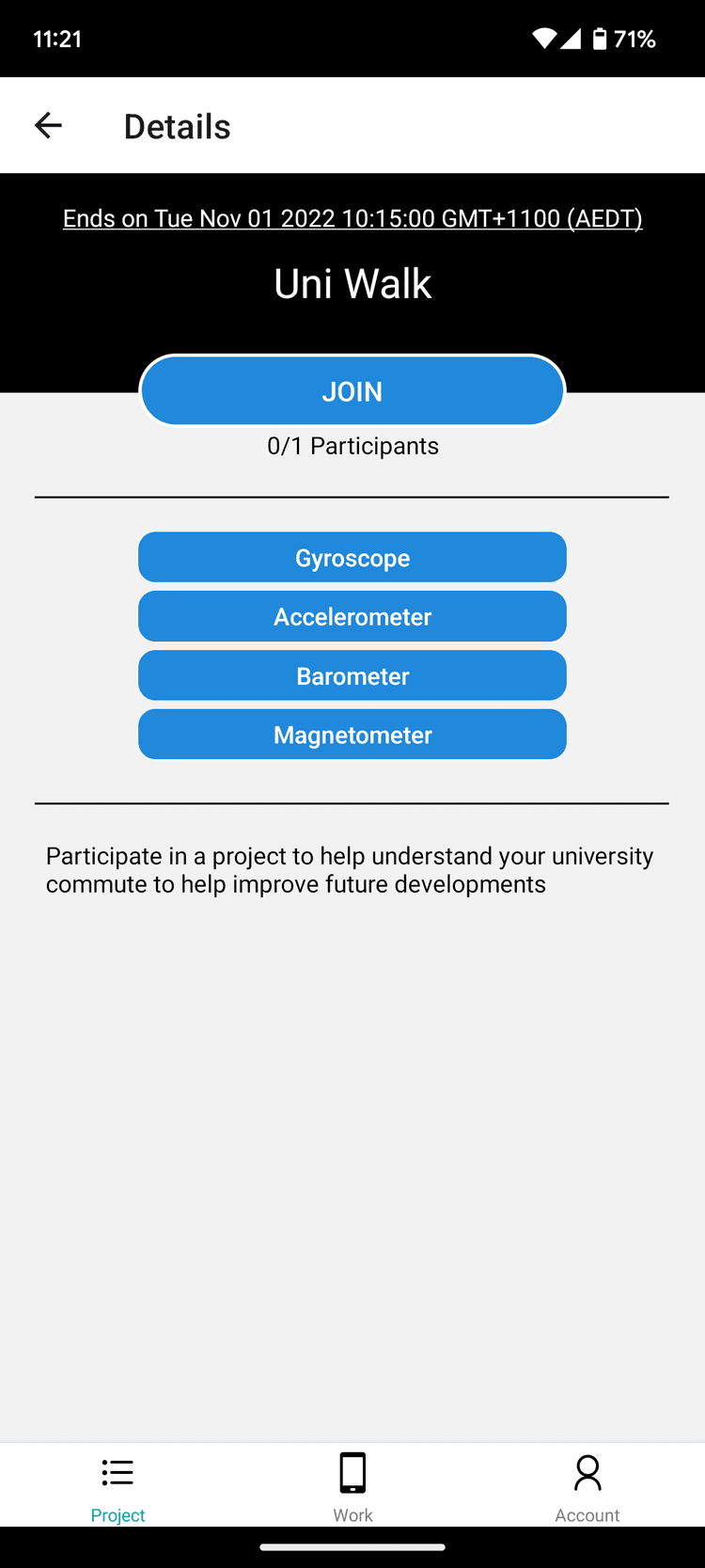
Details on the deadline, number of participants, sensor requirements and a full project information can be accessed here. If participants are interested, they can join the project by clicking on the Join button. If the project has not reached the participant limit and the participants satisfy all the sensor requirements, they will be able to participate in the project.
Viewing works
The Work tab shows all the ongoing projects that the user has accepted and its deadline.
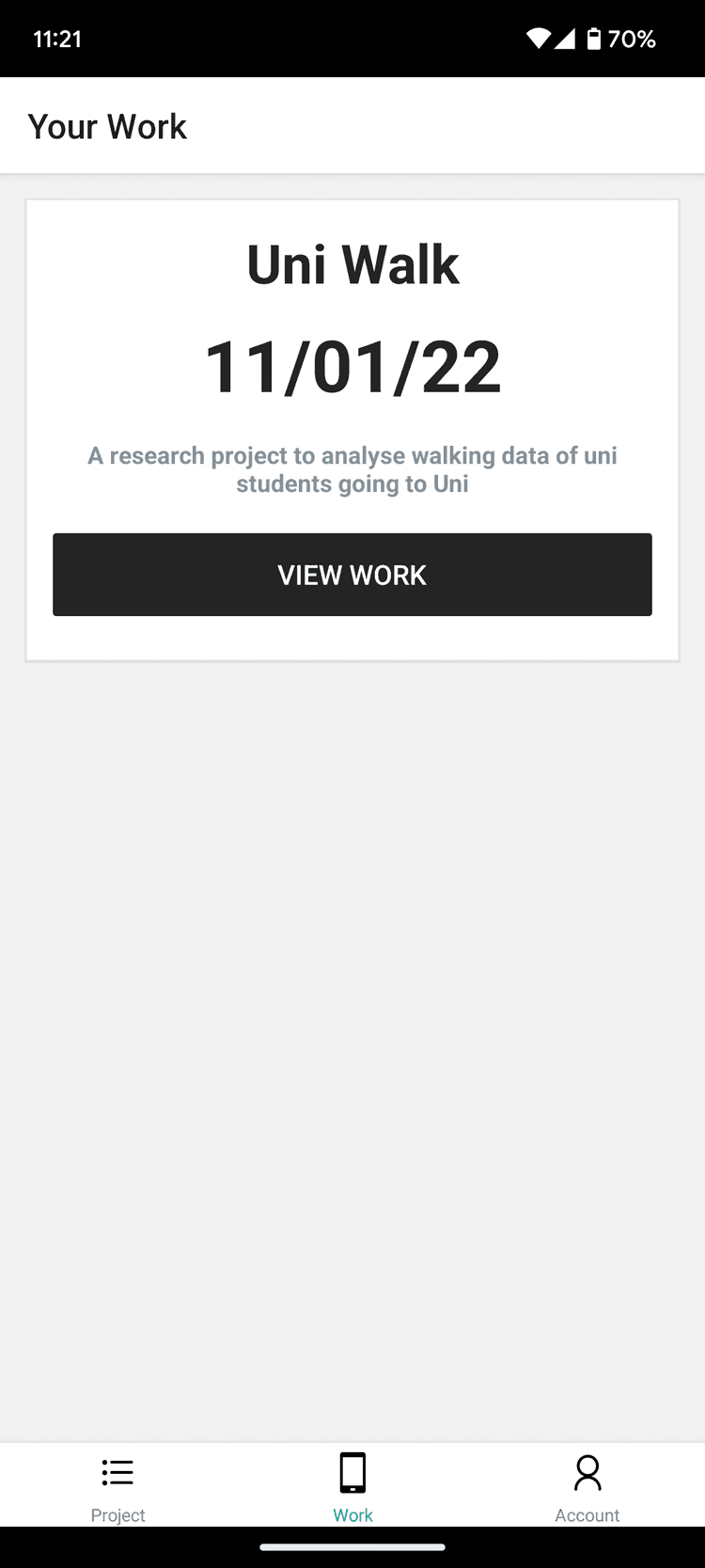
Users can accessed the project work and begin data collection by clicking on View Work.
Collecting project data
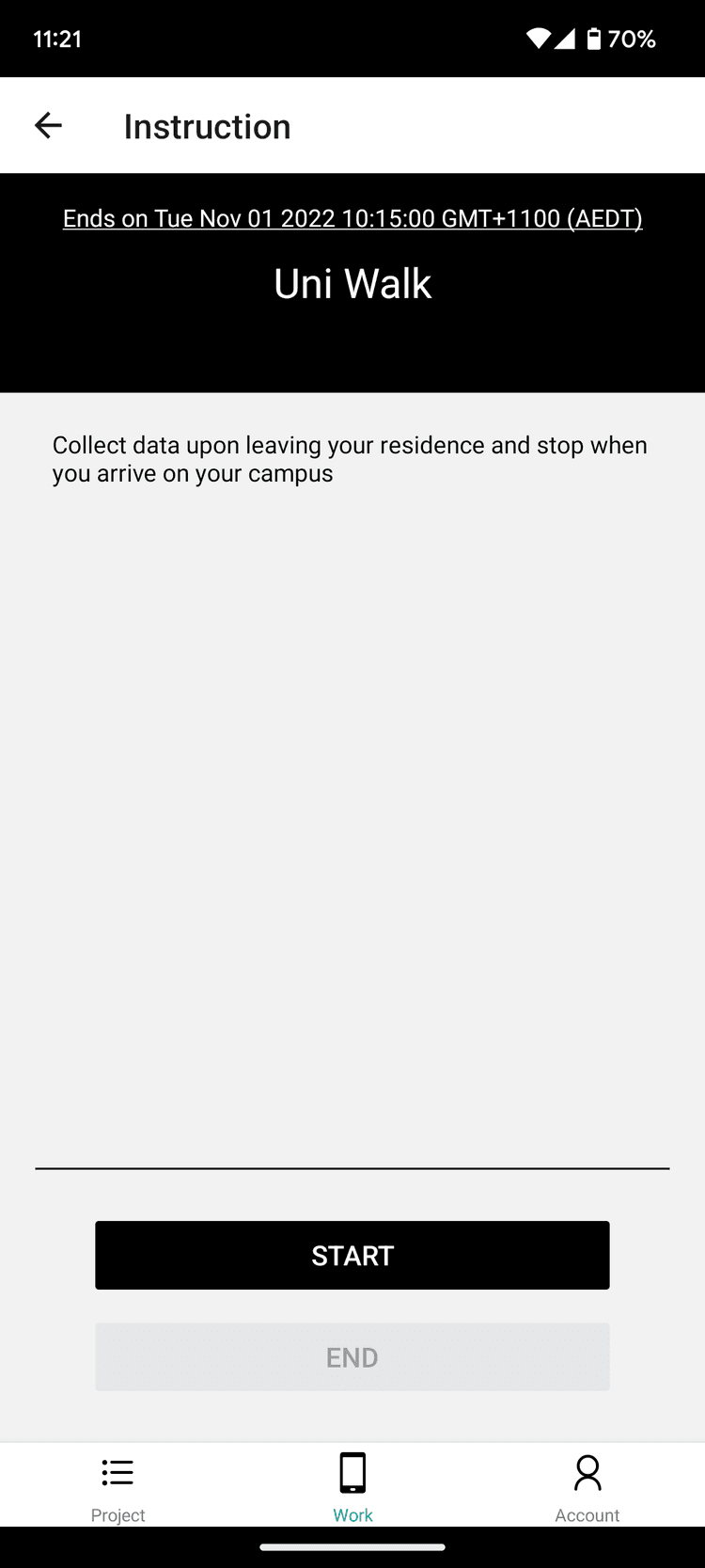
when viewing a work, users will be redirected to an instruction page where they receive instructions from the project owner on the actions they need to perform or directions to collecting the correct data.
Ensure sufficient device storage before collecting sensor data.
30 Minutes of data can use around 1MB of storage.
When participants are ready to begin data collection, clicking on the Start button will activate the required sensors and begins logging the data onto the mobile device storage.
When data collection is completed, logging can stop upon clicking on End to save the collected data.
Submitting project data
When data collection is completed, users will be redirected to a data summary page where they can view the total amounts of data collected.
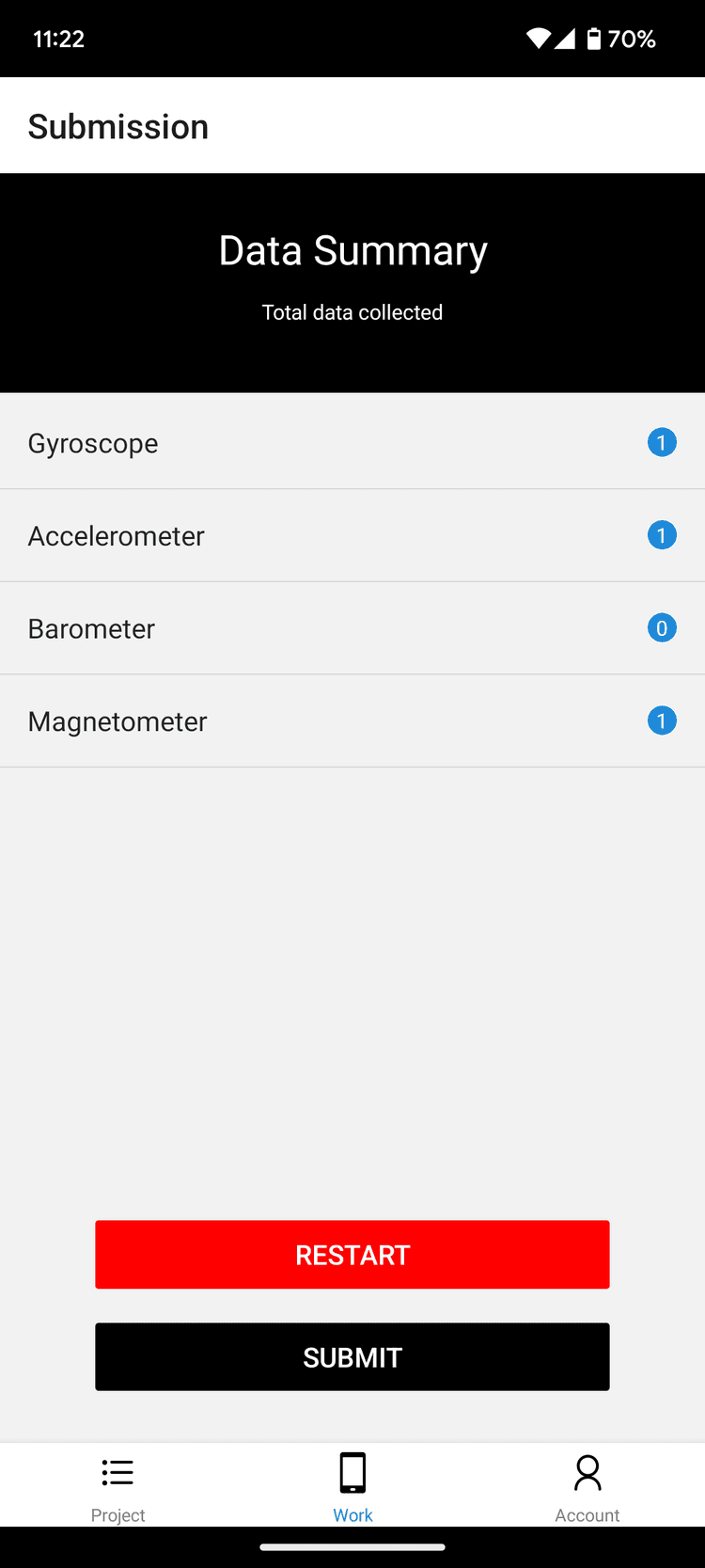
If user are unhappy with the collected data or wants to restart the collection, they can return to the previous page to recollect the sensor data by clicking on Restart.
When users are ready to submit, they can upload the data and deliver the sensor data back to the project owner by clicking on Submit. Once the project has concluded, the participation rewards will be deposited to all successful participants.
Application settings
To view more information or update preferences, users can navigate to the Account page.
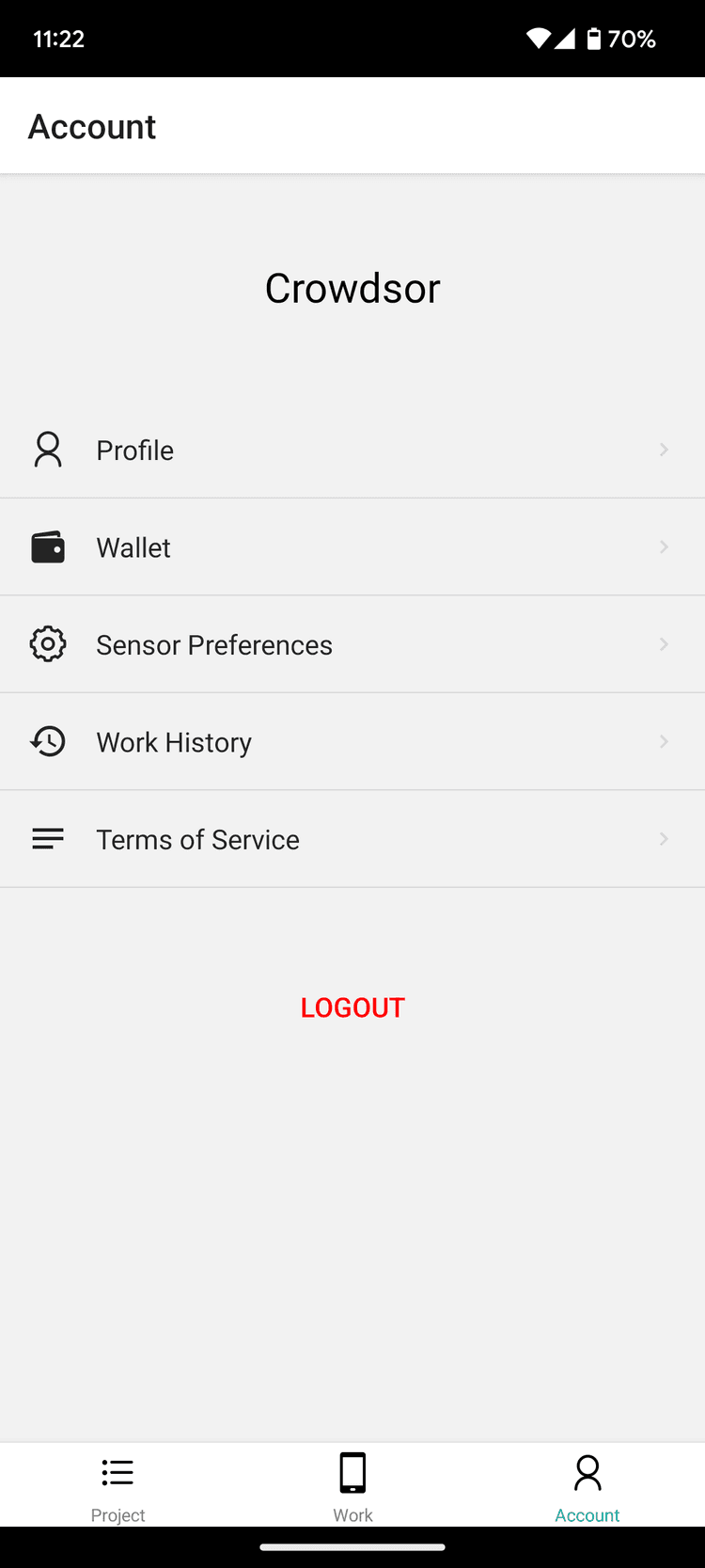
Users can access the following pages here:
- Profile: View user profile
- Wallet: View wallet and credits
- Sensor preferences: Update sensor preferences for projects to use
- Work history: View history of all previously accepted projects that has concluded
- Terms of Service: View the platform and application's terms of service.
- Logout: Sign out of the mobile application
Viewing account details
The account details page shows information related to the current account.
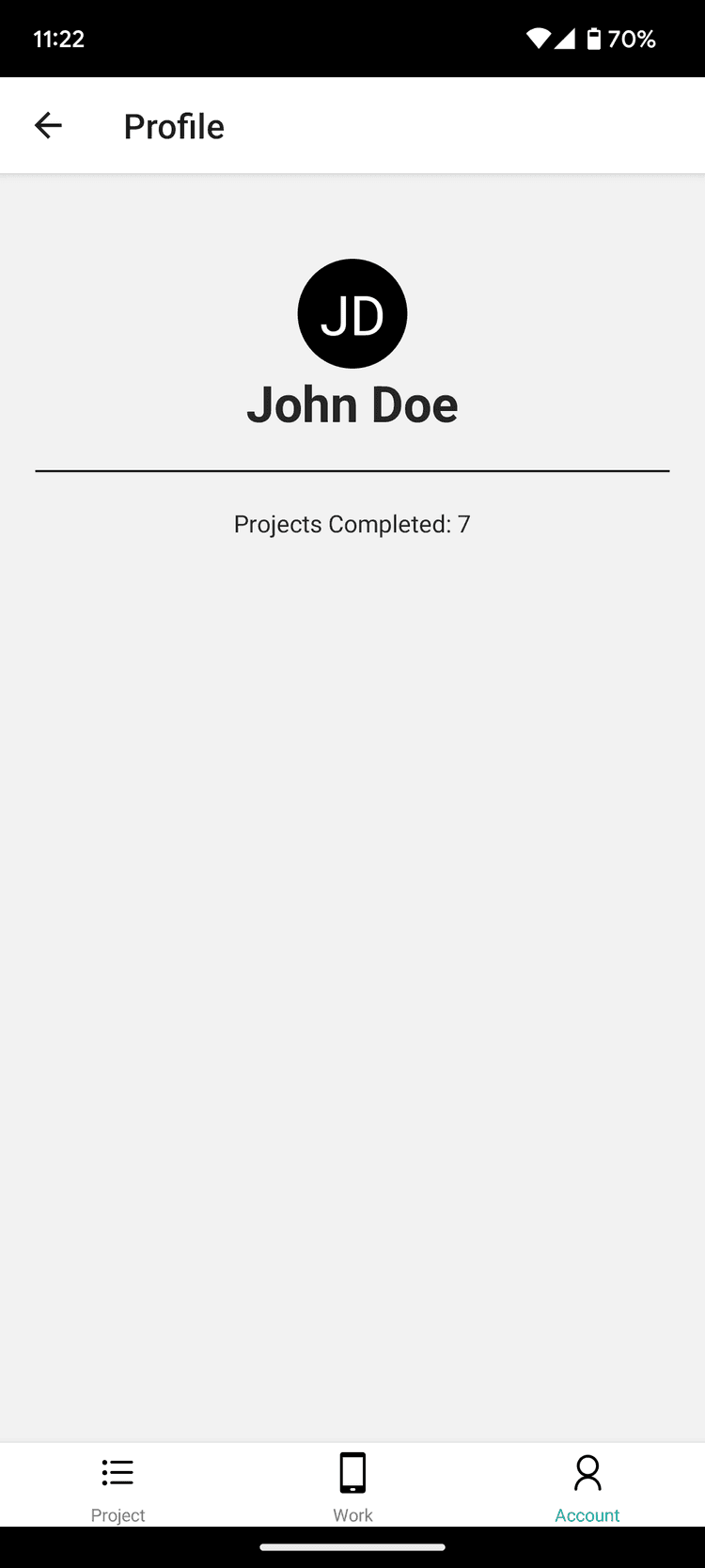
The account name and total projects completed can be accessed here.
Viewing wallet
Account balance and the withdrawal of credits to the user's local currency can be accessed here.
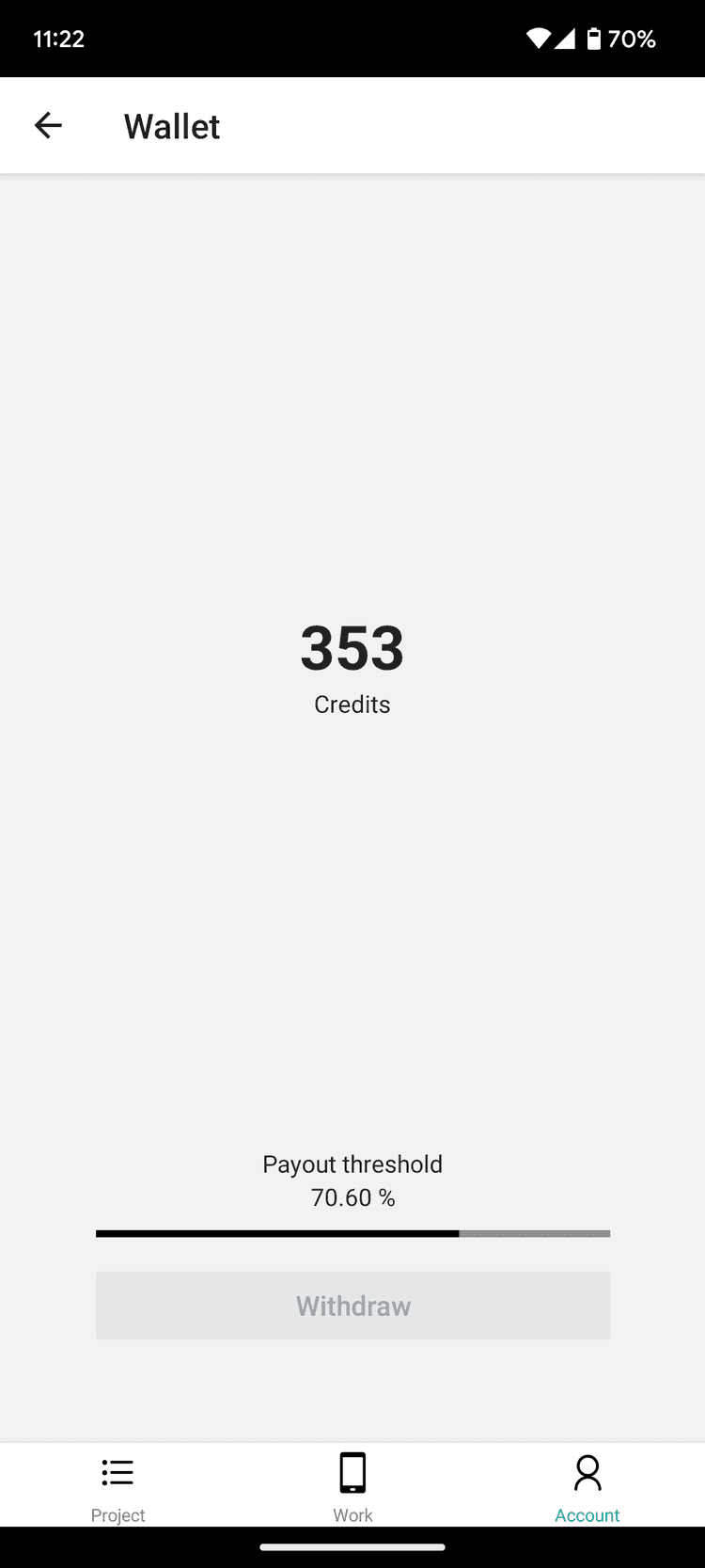
Payout threshold is at 500 credits.
To withdraw credits and convert into the user's local currency, the user must reached a payout threshold amount. The progress to the payout threshold can be seen in this page.
Updating sensor preferences
Users can update their sensor preferences as to what sensors the application can use to collect data for.
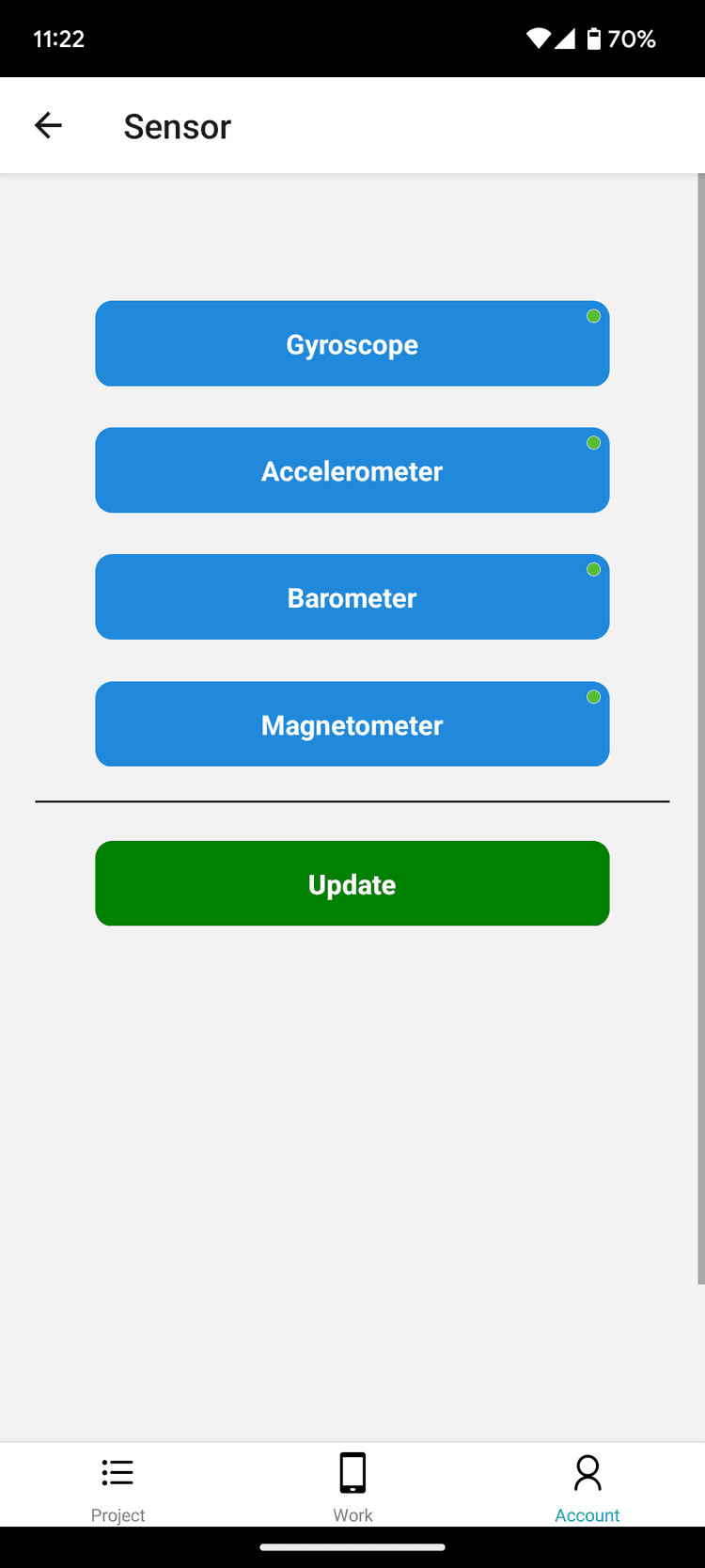
The supported sensors are:
- Gyroscope
- Accelerometer
- Barometer
- Magnetometer
Users will not be able to join projects that do not have all the project required sensors enabled.
The application will not be able to collect sensor data for disabled sensors.
Viewing work history
Work history can be accessed on this page to view all previous projects that has concluded where the user has accepted the work for.
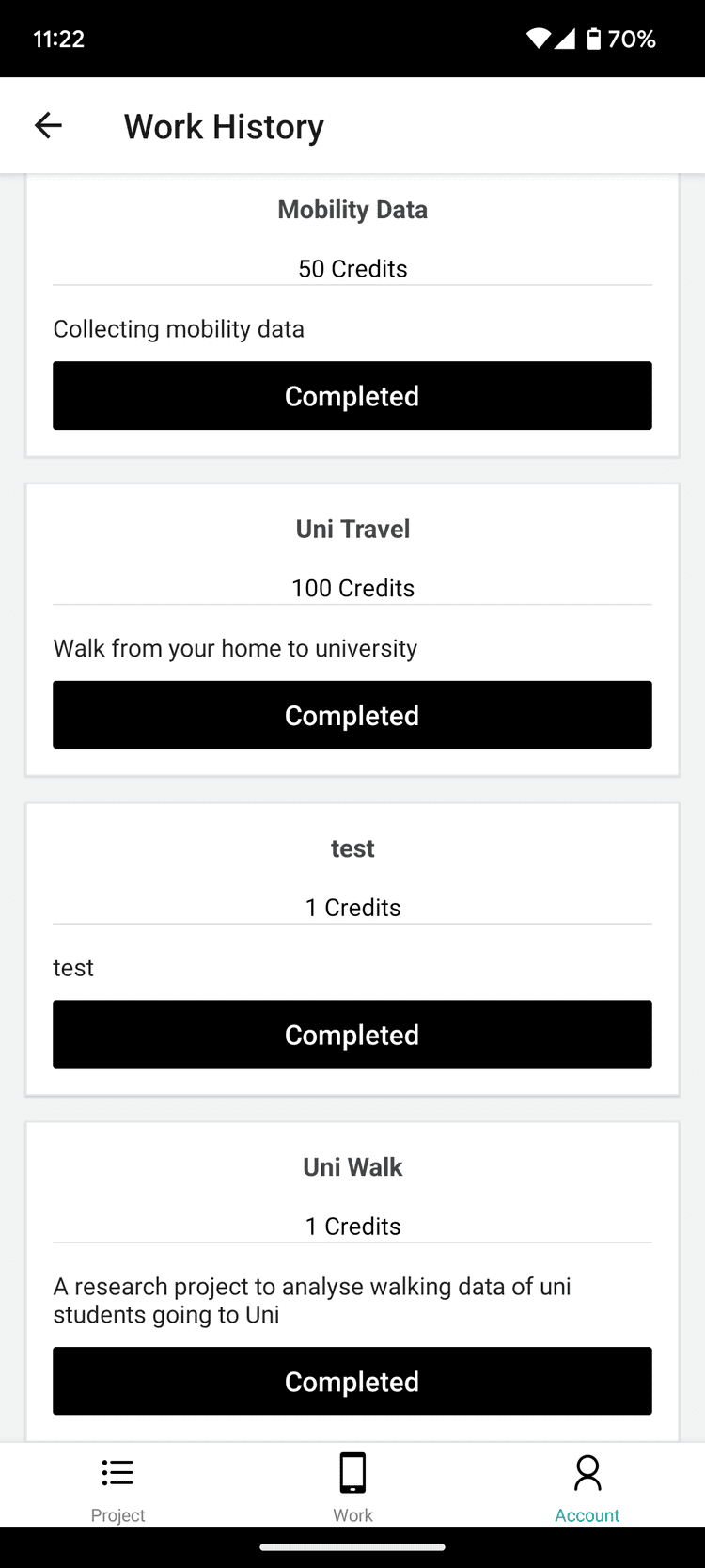
Aside from the project title, participation rewards and short description, the status of the work can be seen here as Completed, Cancelled, Failed or Error.