Usage
Authentication
Login
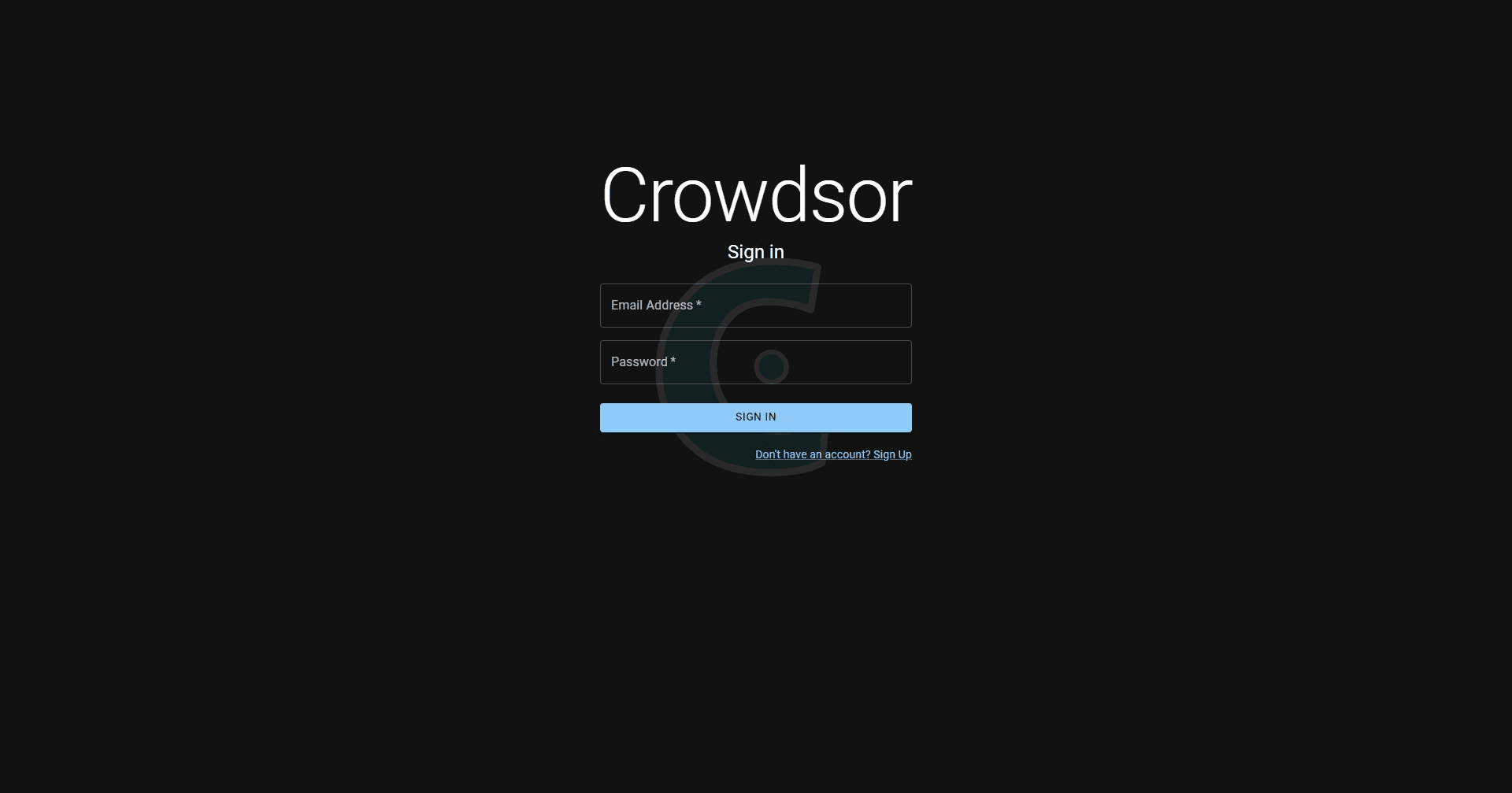
To access the Crowdsor dashboard, users must be authenticated.
Enter email address and password to login.
Register
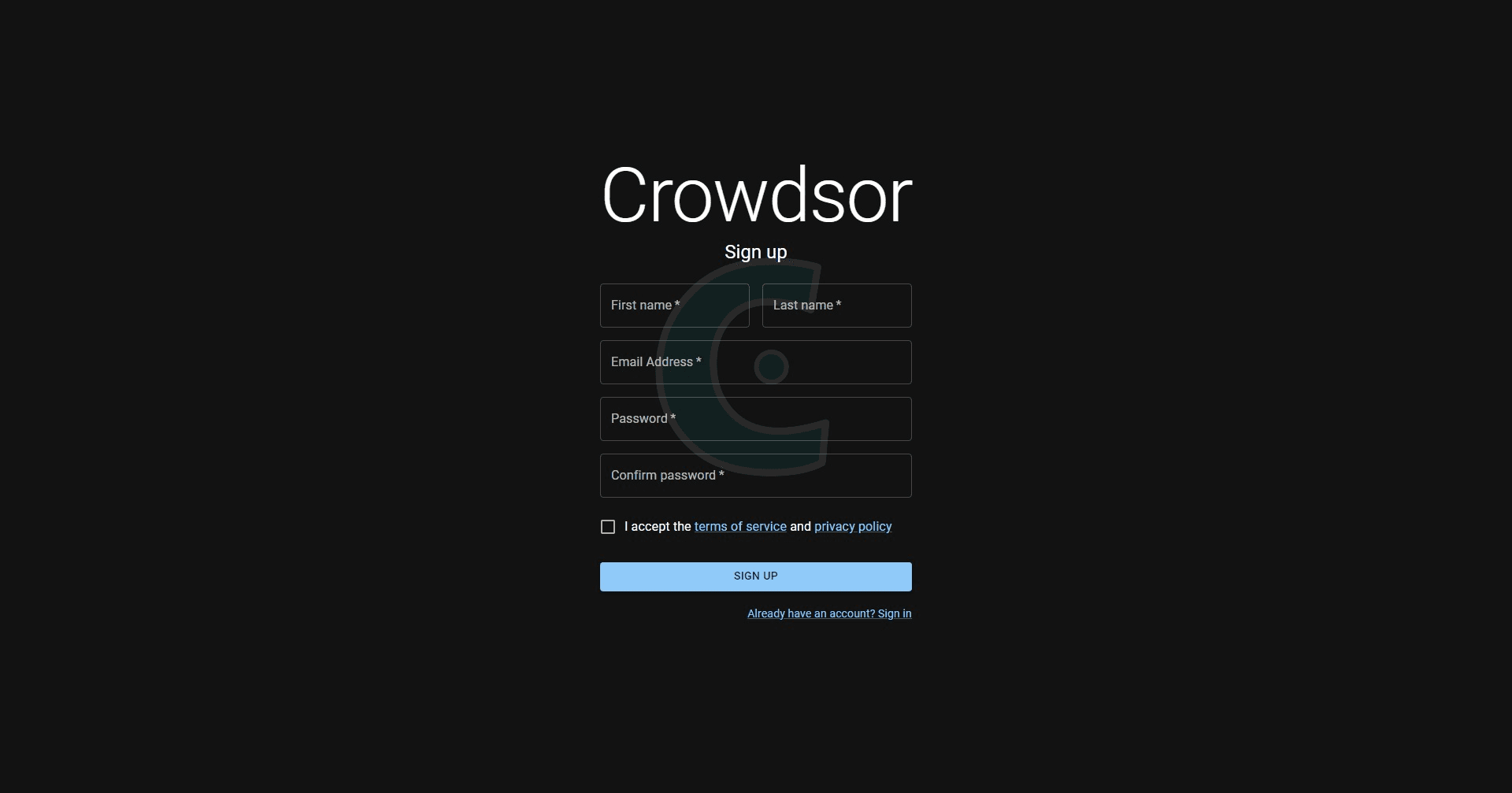
If users do not have an existing account, they can register by providing the following information in the register page.
- First Name
- Last Name
- Password
Managing projects
Once authenticated, the user can manage their active projects or view their past projects.
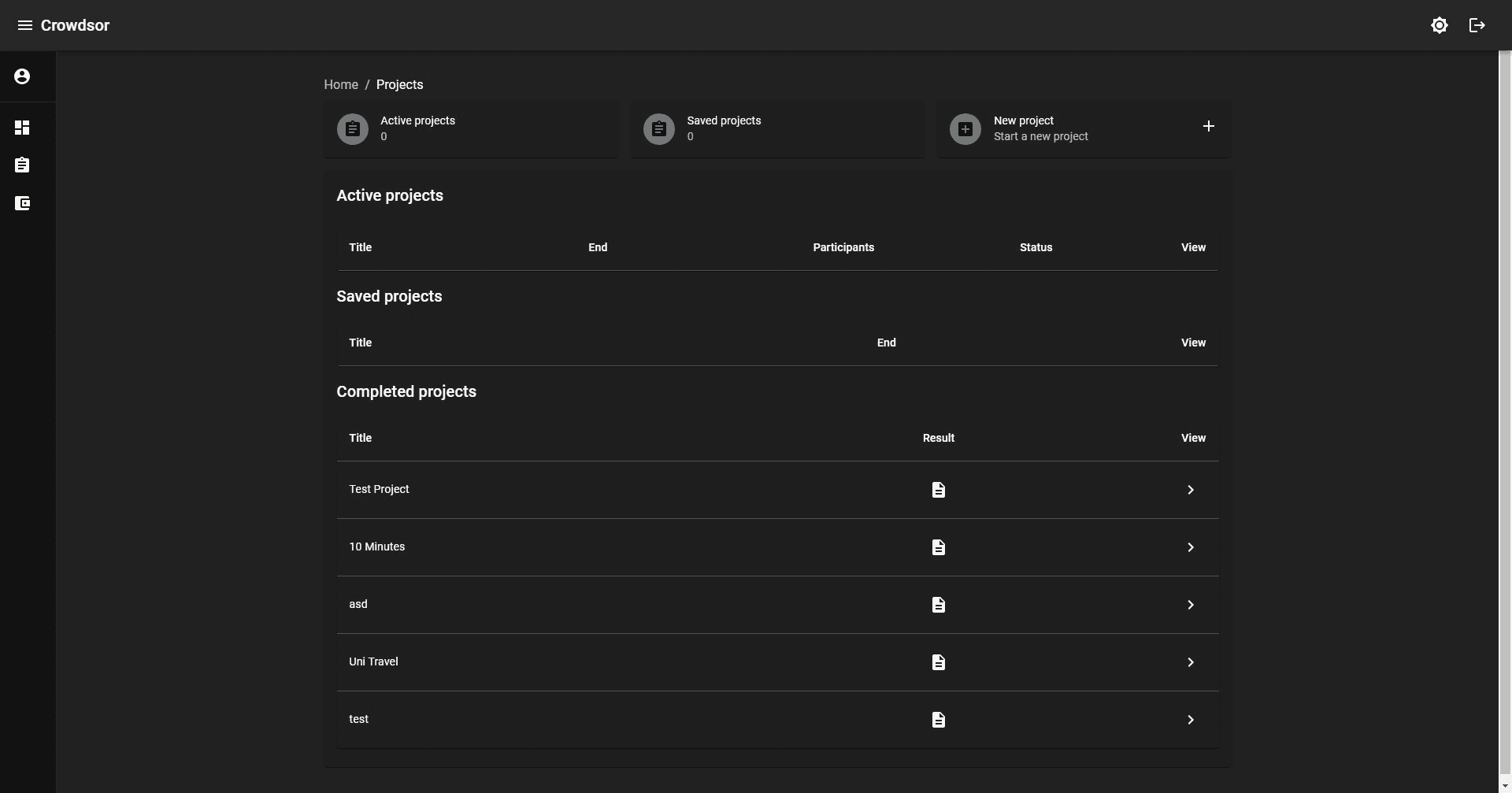
In this dashboard, all currently active and saved projects can be viewed here. Past projects including their results can also be accessed here.
Creating projects
To create a crowdsensing project, navigate to the projects tab and create a new project.
Project details
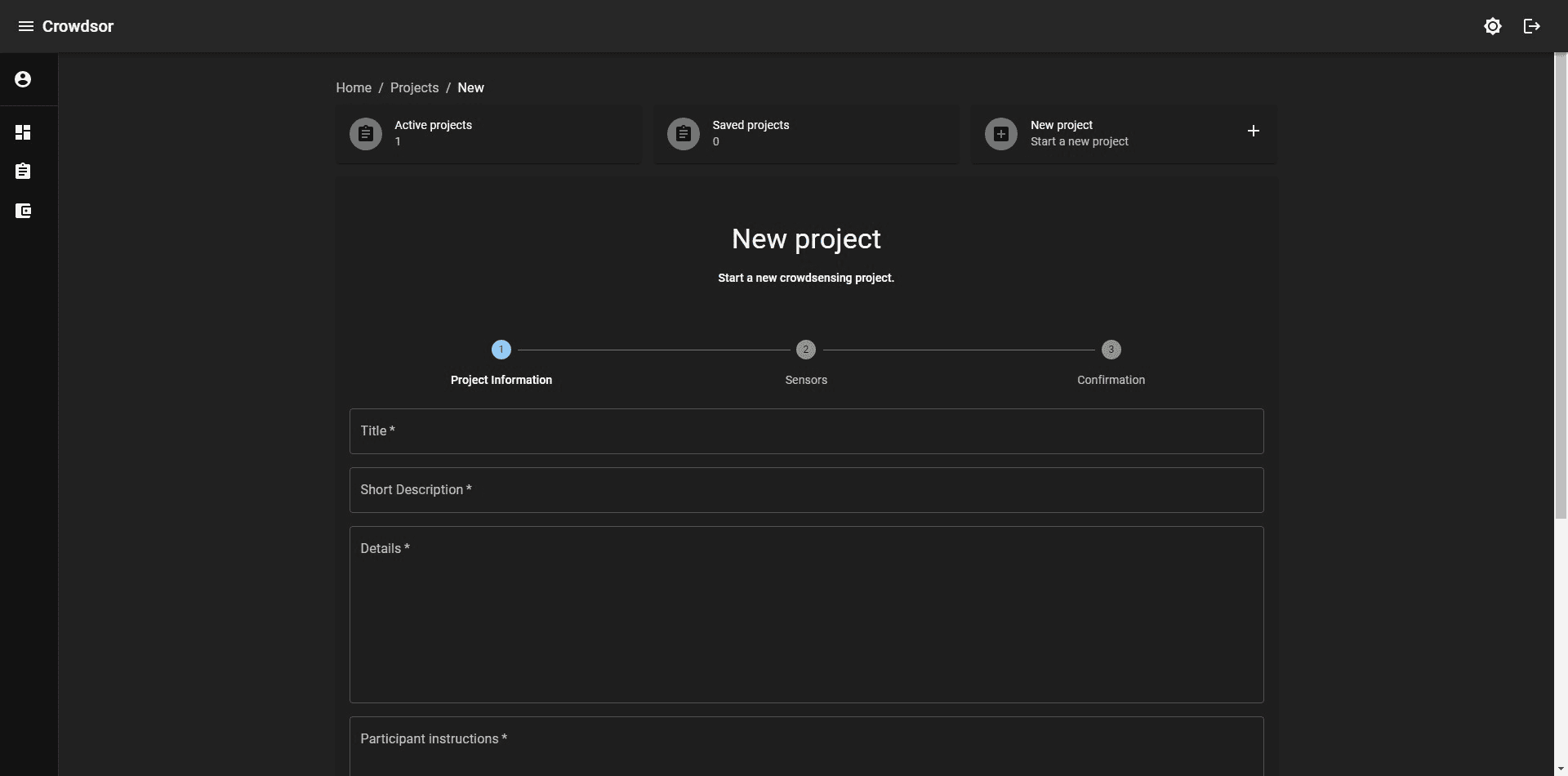
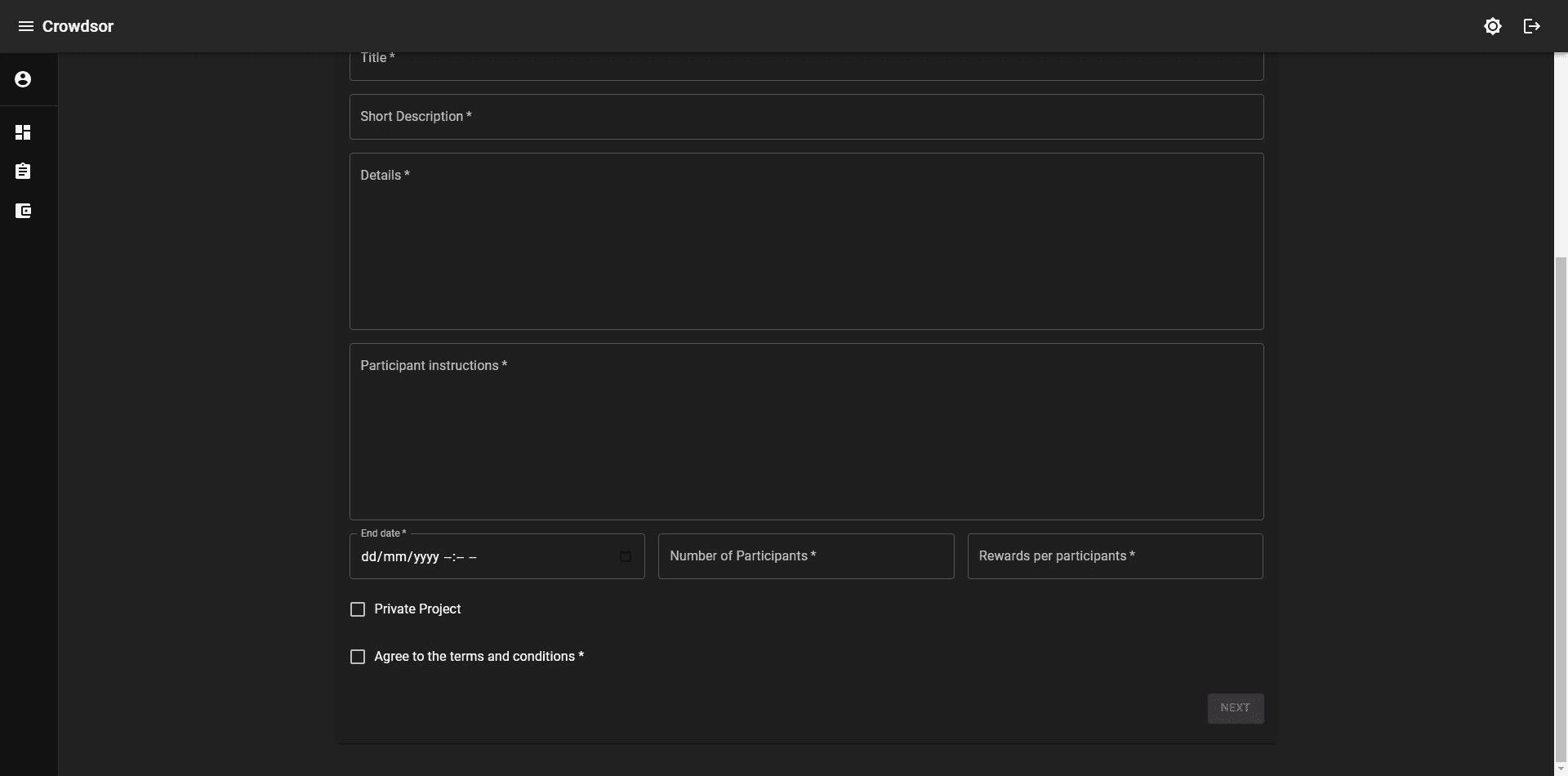
The first step is to provide sufficient information to the platform and potential participants on the project to be hosted.
The required information includes:
- Title: The project name.
- Short description: An information snippet of the project for participants to generate interest.
- Details: The full project details and any information about the project for the participants to learn about.
- Participant instructions: Instructions for the participants to carry out to fulfill the project requirements.
- end date: The project deadline
- Number of participants: The number of required participants, consider potential collection failure and adjust as necessary.
- Rewards per participants: The rewards for each participant who submitted data when the project concluded.
- Private Project (Optional): If selected, the project will not be listed on the platform publicly and will require manual recruitment from the project owner.
Sensor requirements
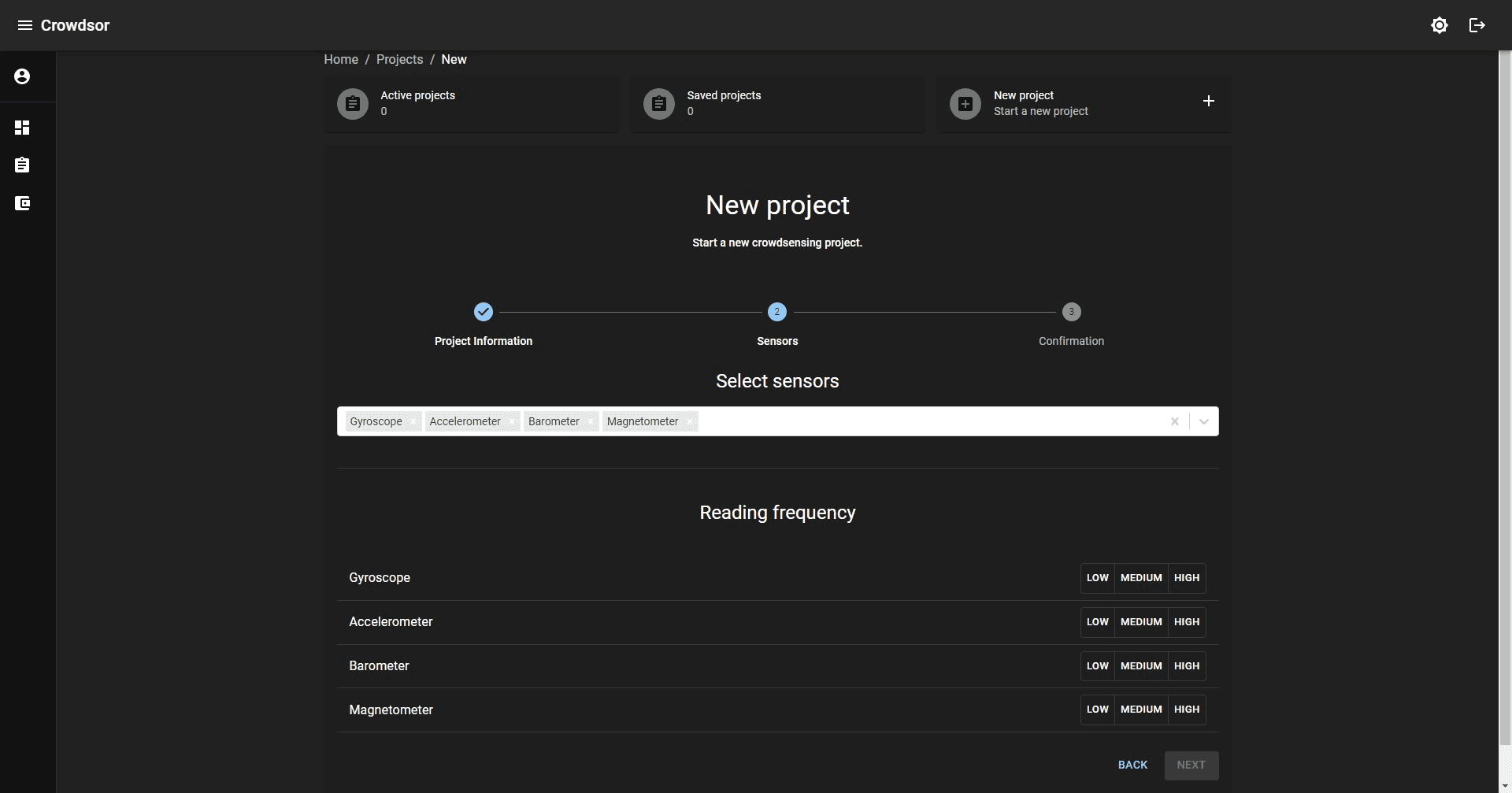
Once the required project information are collected, the sensors required for the project needs to be defined.
Projects can select sensors from the supported dropdown list, once selected, the sensor polling rate needs to be selected. The polling rates are:
- Low: 0.5hz
- Medium: 1hz
- High: 2hz
Confirmation
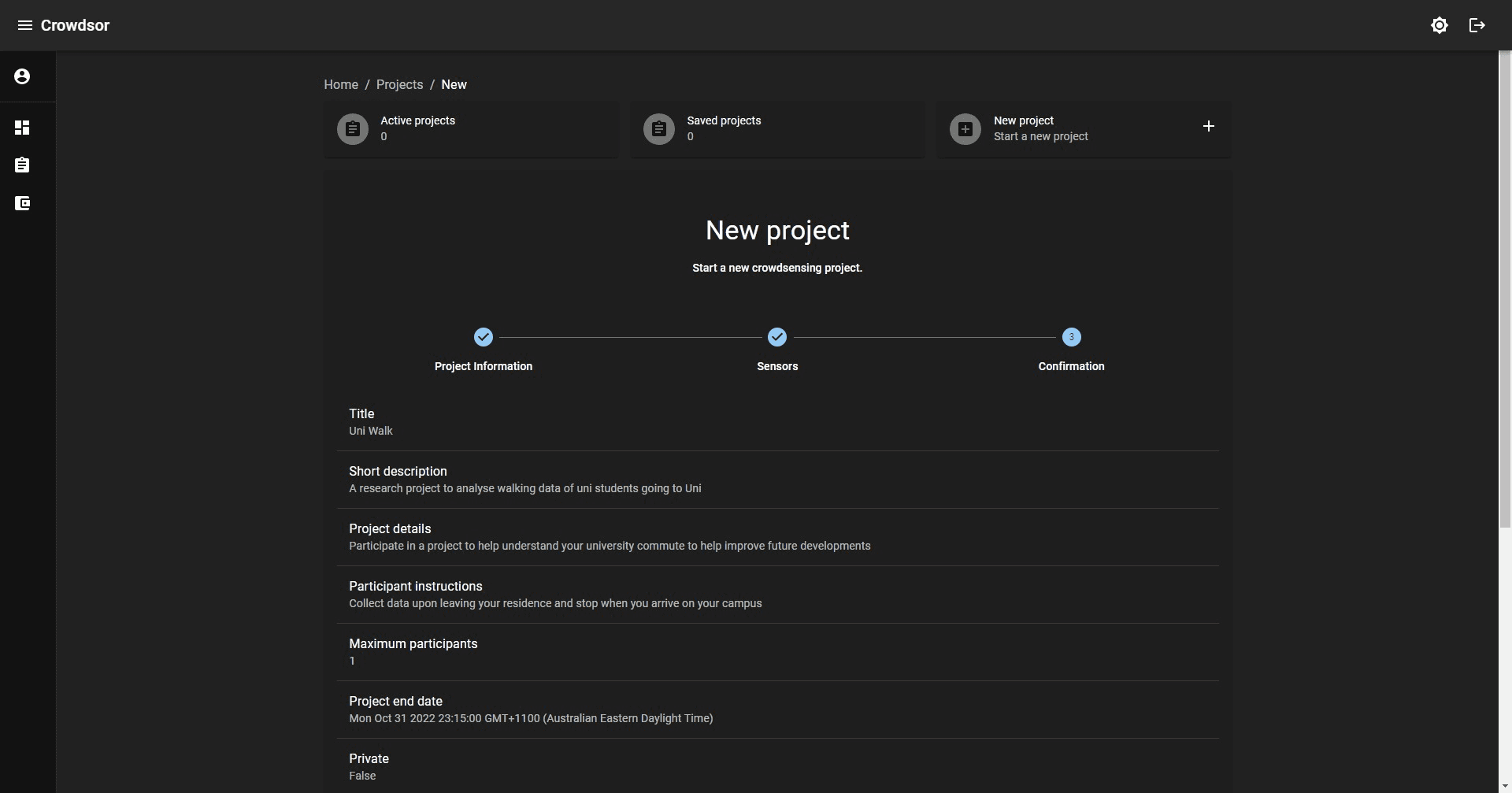
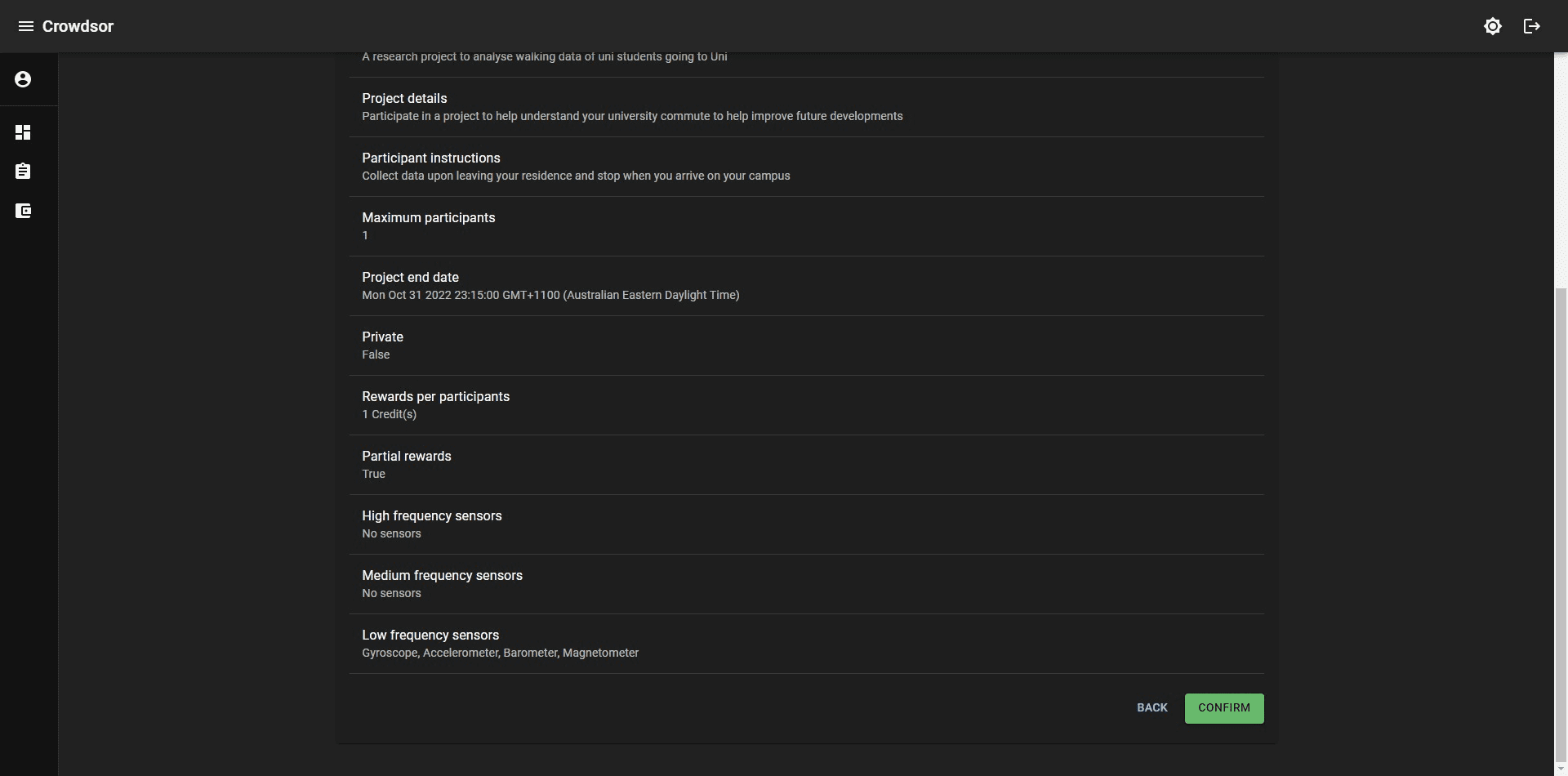
The final step is to confirm all the details entered for the project, once confirmed, the project will be saved and ready to be deployed on the platform.
Review and Payment
Following the project confirmation, project owner will be need to finalise the project and payment for the project to be published. Projects can also be cancelled at this stage.
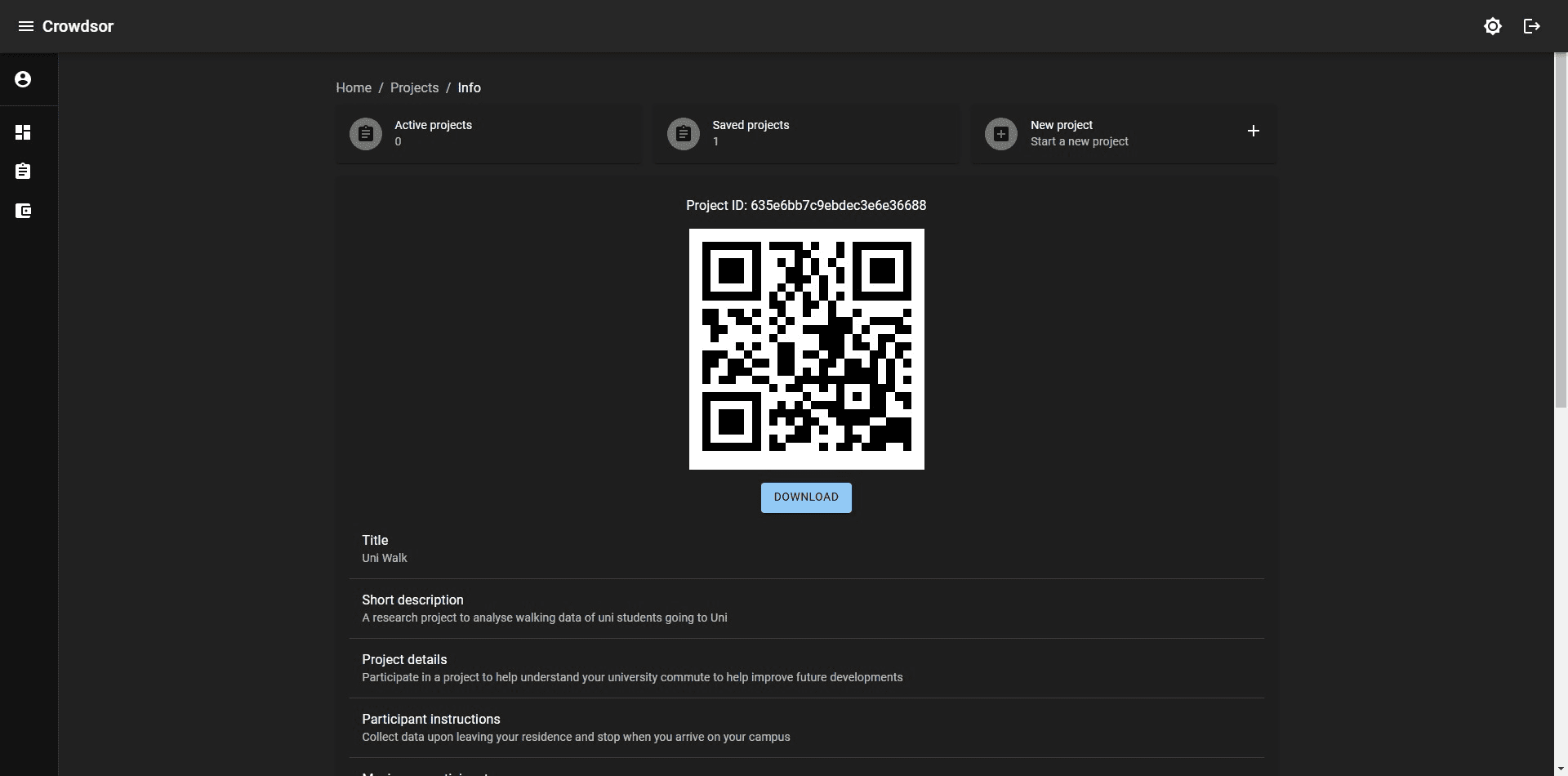
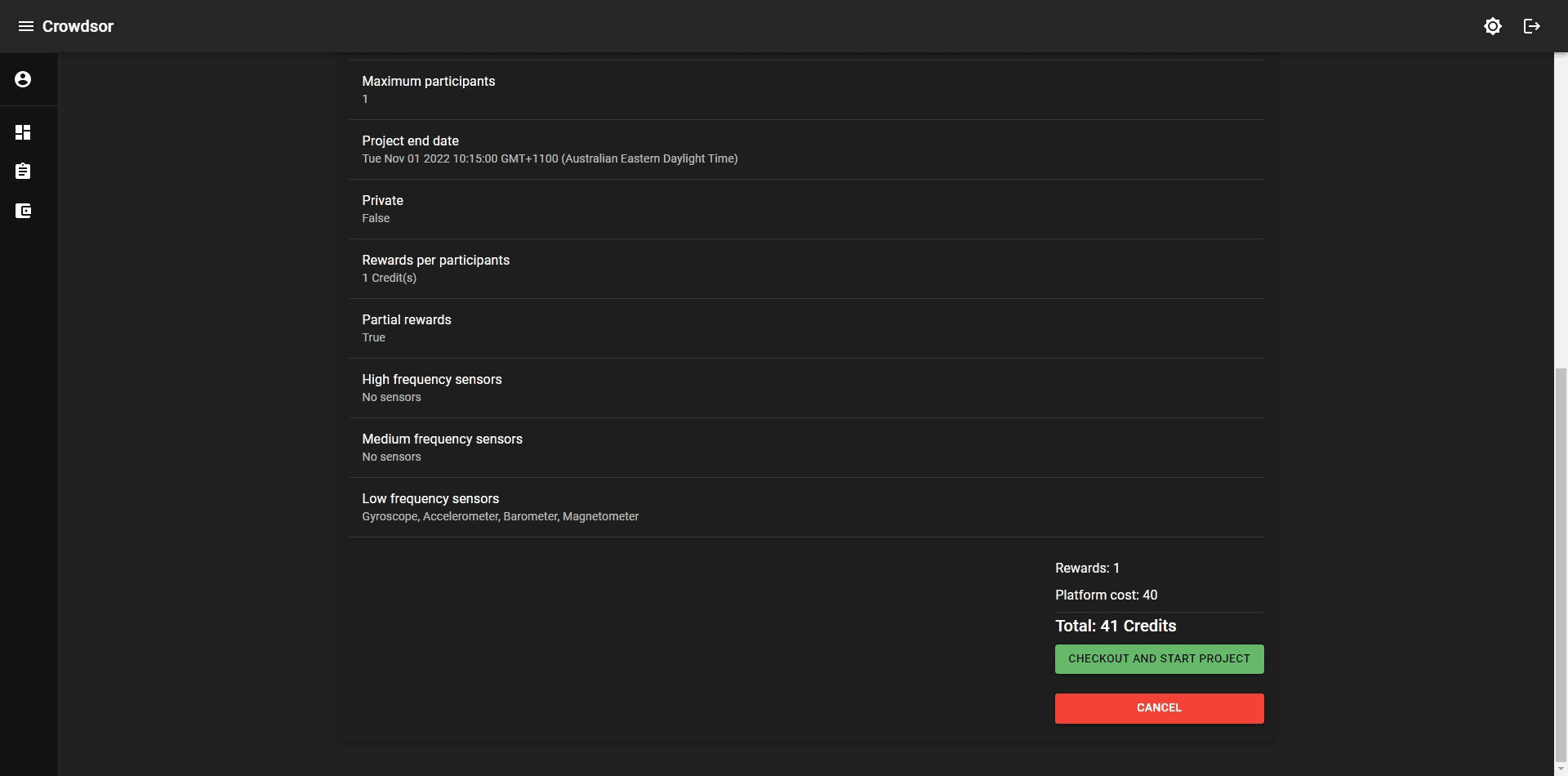
The total credits to be paid includes both platform costs and the total rewards to be distributed for all successful participants which will be held until the project has concluded.
To pay for the project, the account must have sufficient credits in the wallet.
Managing credits
The wallet is where users can manage their credits.
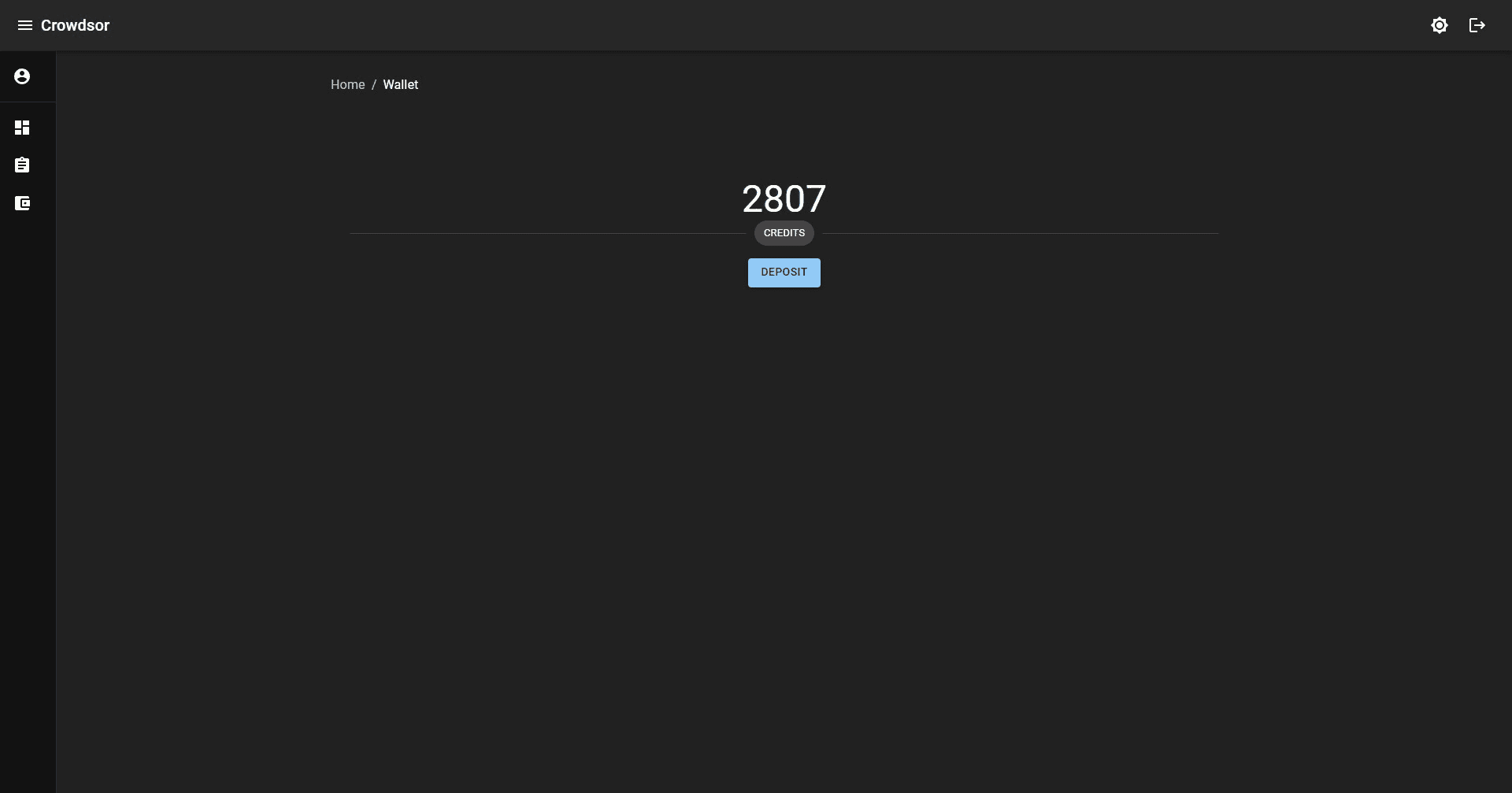
The credit balance and the option to purchase more credits can be done here.
Download results
Upon project conclusion, the results of the project can be viewed here including the final project state such as the completion rate.
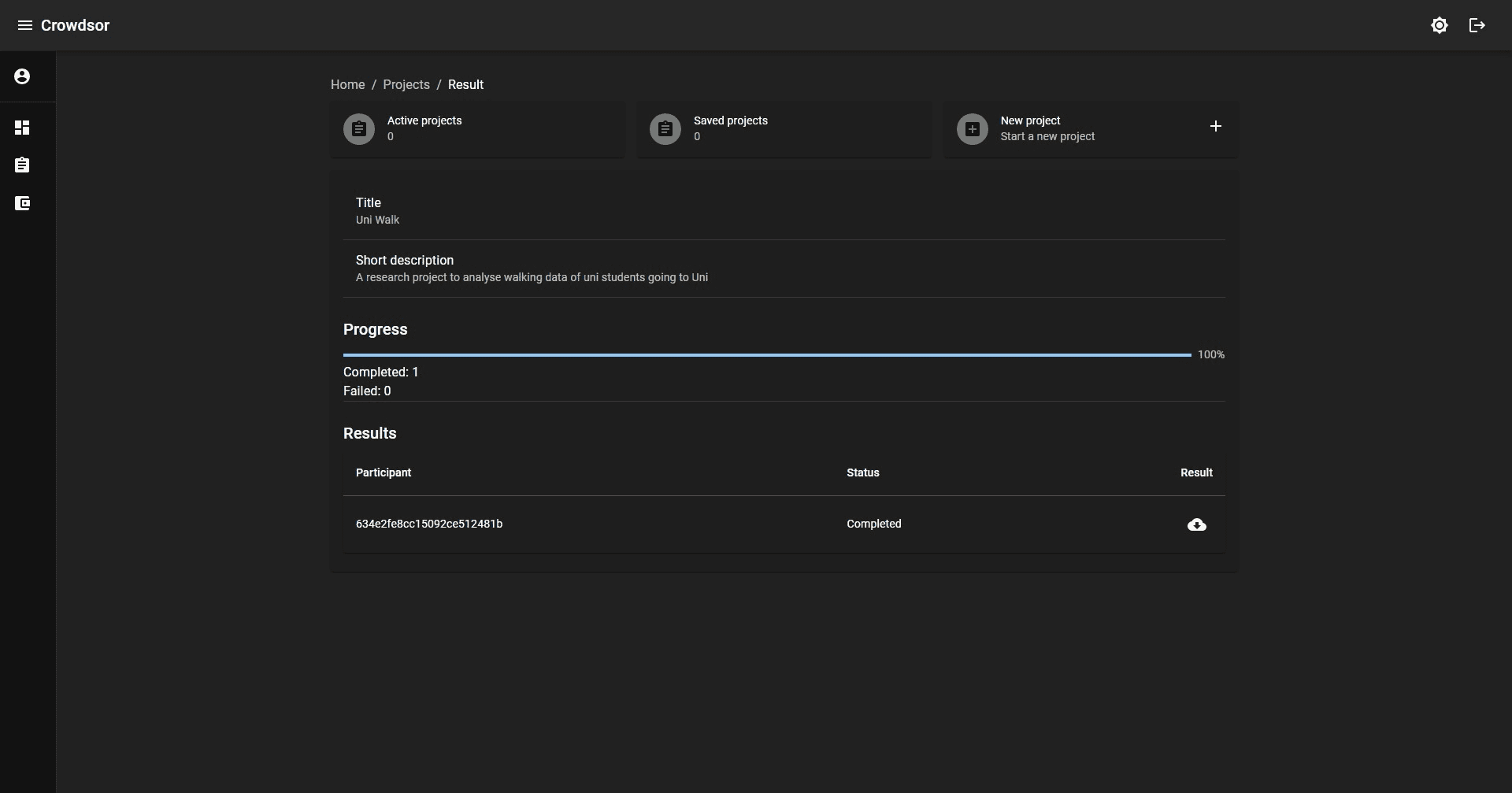
The list of participants, their completion status and result files (if completed) can be downloaded by clicking on each download icon.